Get started in 3 steps
- Open the app. Choose your Bundesland (federal state).
- Answer the first questions. Then tell the app when your test is.
- Practise a few minutes every day. On the start screen, tap the big button. It always shows your next step.
The first start
You do not need an account. The app asks you a few things, step by step.
- A short note. Citizenwise is a learning app. It is not from the BAMF (the Federal Office for Migration and Refugees). Tap „Los geht’s“ (Let’s go).
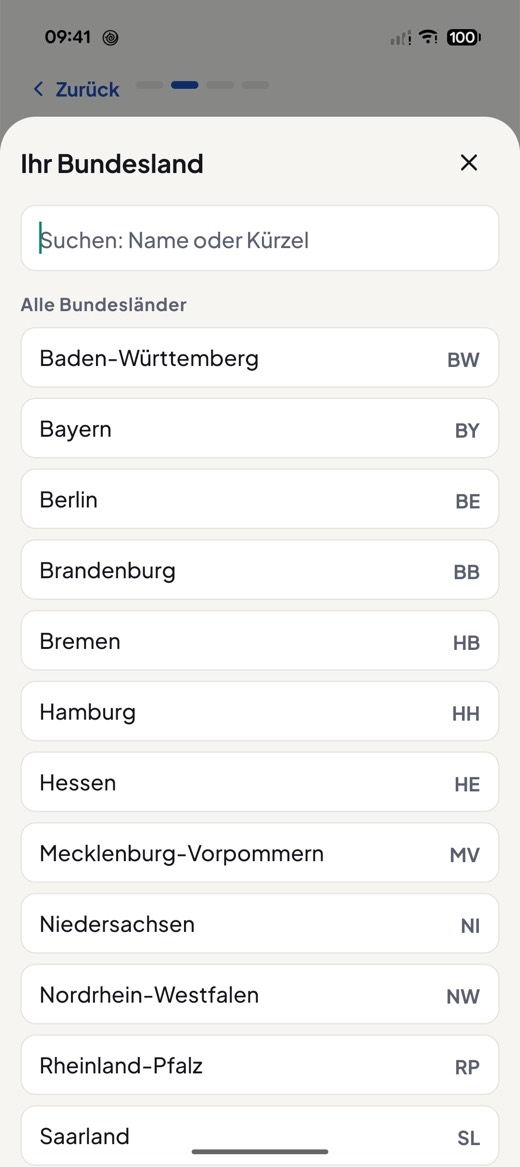
- Your Bundesland. In the test, you get 3 questions about your Bundesland. Tap „Bundesland wählen“ (Choose federal state). You can search the list by name or by short code. Want to choose later? Tap „Vorerst überspringen“ (Skip for now). You can then choose it in the settings.
- The first questions. They show you where you are starting. A low score is not a problem. Not now? Tap „Überspringen“ (Skip).
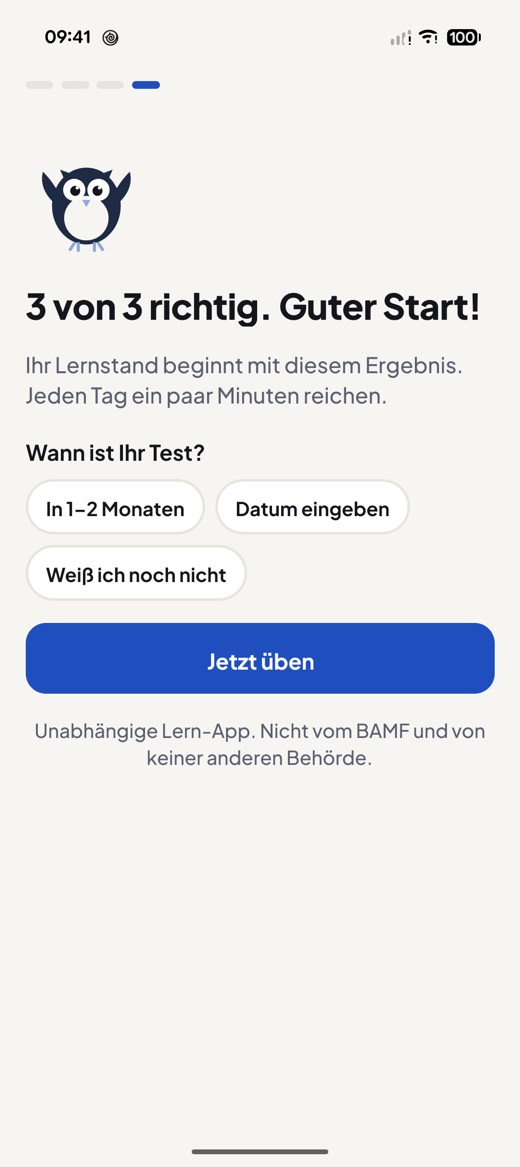
- „Wann ist Ihr Test?“ (When is your test?) Choose „In 1–2 Monaten“ (In 1–2 months), „Datum eingeben“ (Enter date) or „Weiß ich noch nicht“ (I don’t know yet). With a date, tap „Meinen Plan starten“ (Start my plan). Without a date, tap „Jetzt üben“ (Practise now). With a date or „In 1–2 Monaten“ (In 1–2 months), you can tick „Jeden Tag um 18 Uhr erinnern“ (Remind me every day at 6 pm). Only then does your phone ask whether to allow notifications. If your phone is set to Turkish, Arabic, Ukrainian, Russian, Polish, Persian or English, a link opens this guide in that language.
Which test does the app practise?
The Einbürgerungstest. It is also called „Leben in Deutschland“ (Life in Germany). It is the same test.
- The app has all 300 questions for all of Germany and the 10 questions for your Bundesland.
- In the test, you get 33 questions: 30 general questions and 3 about your Bundesland.
- You have 60 minutes. With 17 correct answers, you pass.
Start
The start screen shows how far you are and what to do next.
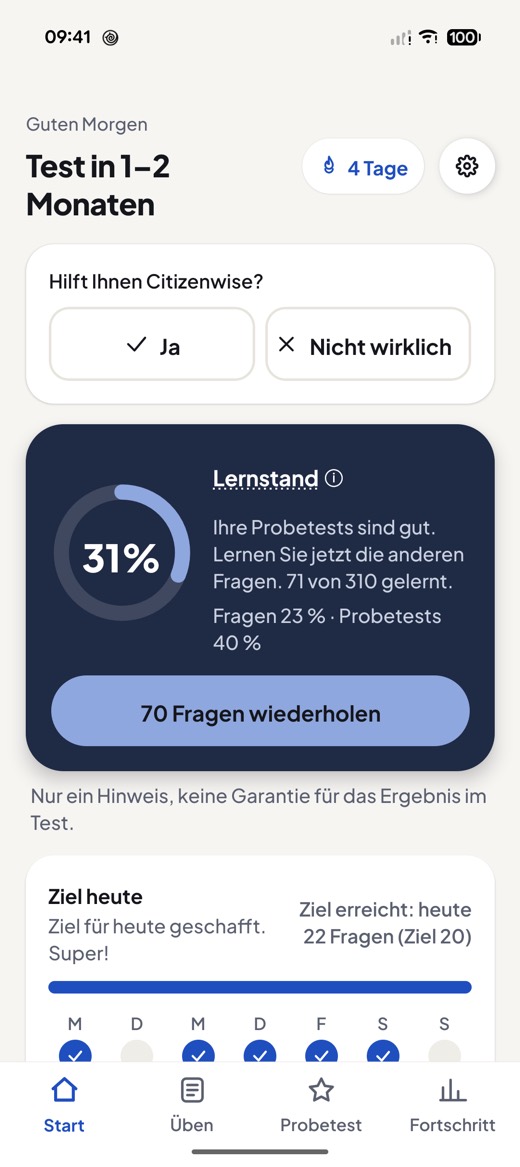
- At the top: a greeting and the days until your test, for example „Test in 30 Tagen“ (Test in 30 days). At the top right, the gear icon opens the settings.
- „Lernstand“ (Learning level): The ring shows a percentage. Half of it comes from the questions you have learned. The other half comes from your last 5 practice tests. This is only a hint, not a guarantee of your result in the test. Tap „Lernstand“ to see more.
- The big button: your next step. It changes. For example: „Starten · 19 Fragen“ (Start · 19 questions: your plan for today), „12 Fragen wiederholen“ (Review 12 questions), „Jetzt Probetest starten“ (Start practice test now) or „Weiter: (ein Thema)“ (Next: (a topic)). For a new topic it says „Starten: (ein Thema)“ (Start: (a topic)).
- „Ziel heute“ (Goal today): how many questions you have practised today. You get a dot for each day of the week that you studied. Without a test date the goal is 10 questions a day; with a date it is your plan’s number for today.
- At the bottom: quick links, for example „Alle Fragen üben“ (Practise all questions) and „Anhören“ (Listen). About two weeks before the test, „Am Testtag: Was Sie brauchen“ (On test day: what you need) is added.
Practise
Tap „Üben“ (Practise) at the bottom. At the top you find:
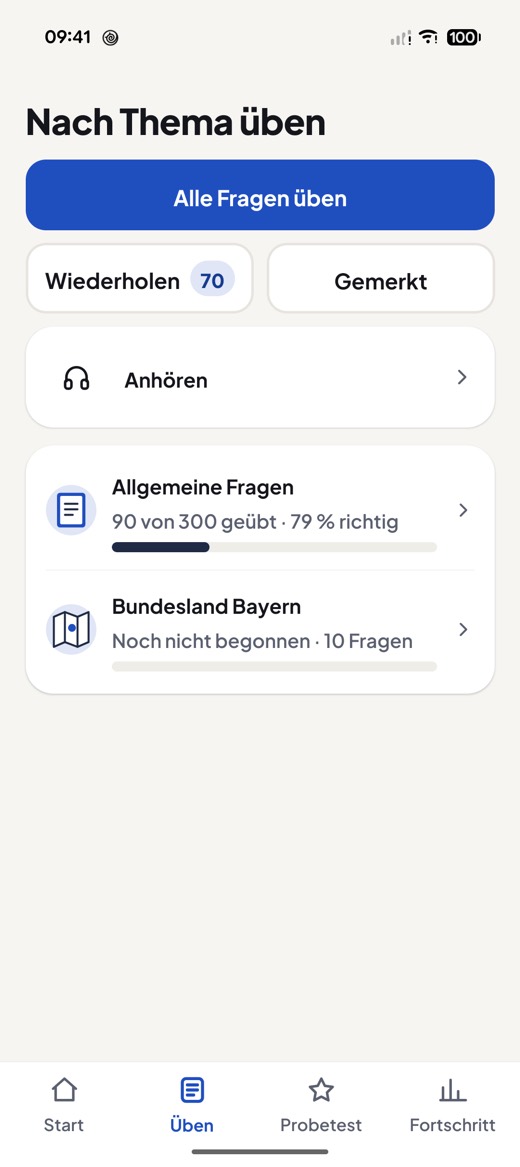
- „Alle Fragen üben“ (Practise all questions): all questions in order. It counts in rounds of 10, for example „Runde 1 · 1 von 10“ (Round 1 · 1 of 10).
- „Wiederholen“ (Review): the questions you should practise again today. The number shows how many. „Alles erledigt ✓“ (All done ✓) means: nothing is due today.
- „Gemerkt“ (Saved): questions you have saved.
- „Anhören“ (Listen): your phone reads the questions and answers aloud.
Topics
Below that is the list of topics. Each topic shows how far you are, for example „5 von 12 geübt“ (5 of 12 practised). After 5 answers in a topic, you also see how many were correct, for example „· 80 % richtig“ (· 80 % correct). If a topic is hard for you, it says „Mehr üben“ (Practise more). Tap a topic to practise it. When you finish a topic with every answer right, „Nächstes Thema“ (Next topic) takes you on.
How a question works
- Read the question. Tap „Vorlesen“ (Read aloud) if you want to hear it.
- Tap an answer. The app shows right away „Richtig“ (Correct) or „Nicht ganz“ (Not quite) and the correct answer.
- Tap „Nächste Frage“ (Next question) or swipe on. With „Später wiederholen“ (Review later), the question comes back.
Wrong questions come back later under „Wiederholen“ (Review). There you can tap „Kann ich sicher“ (I know this for sure). Then the question is no longer included.
- Save a question: Tap 🔖 on a question. You then find it under „Gemerkt“ (Saved).
- Source: Every question has a link to the official source at the BAMF.
- Words with ⓘ: Tap them. Then you see what they mean.
Questions with a picture
Some questions in the test have a picture.
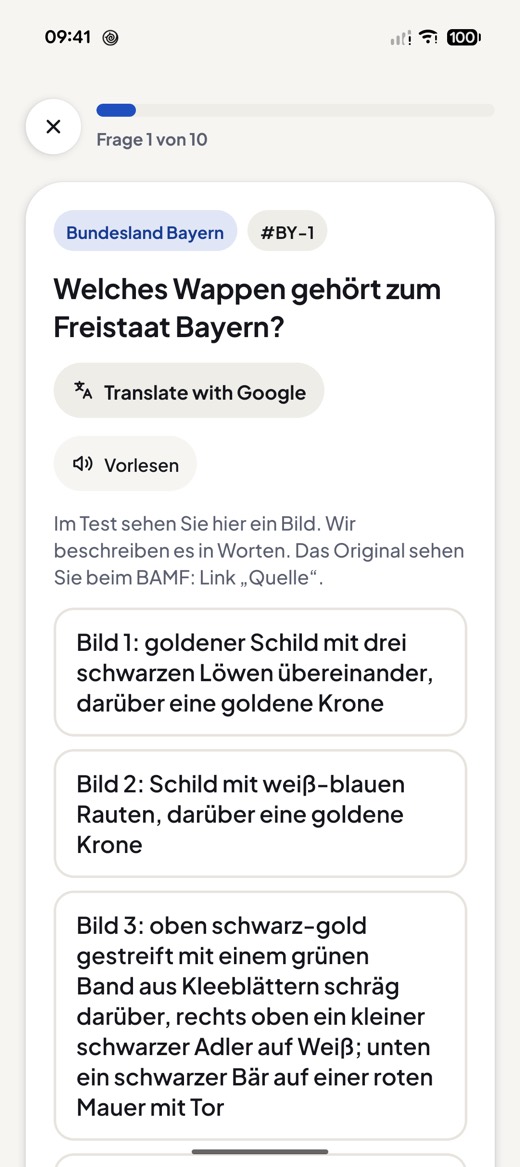
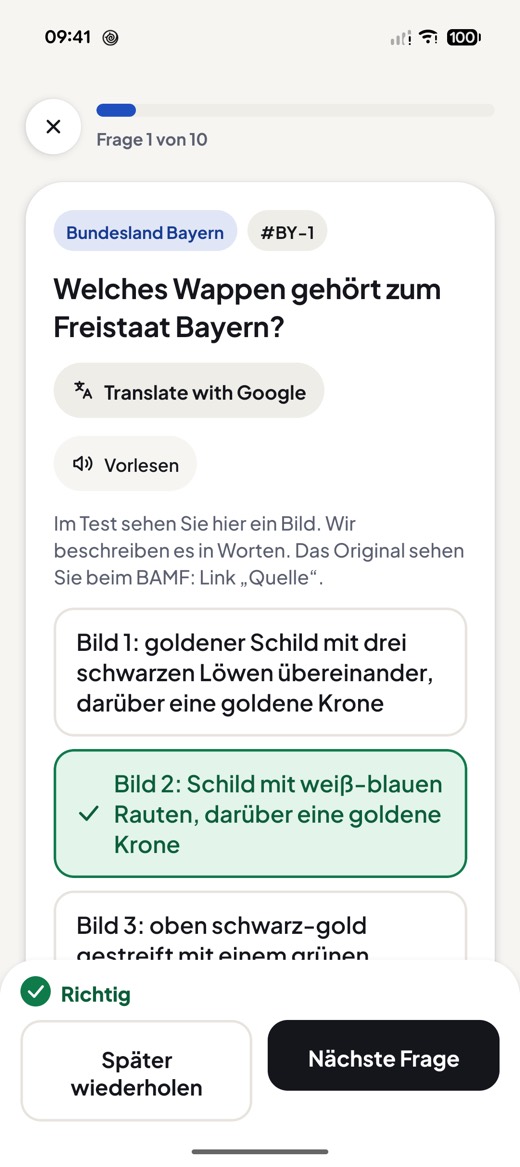
- For some questions, we describe the picture in words.
- We drew some pictures ourselves. The numbers are the same as in the official list from the BAMF.
- We are not allowed to show some pictures. With the link „Quelle“ (Source), you see the original at the BAMF. These questions do not appear in the practice test.
Listen
Open „Anhören“ (Listen) under „Üben“ (Practise). Your phone reads a question aloud, waits a moment so you can think, and then reads the answer. This works offline, ideal when you are out and about. Choose a topic, „Zum Wiederholen“ (To review) or „Alle Fragen“ (All questions). You can also choose the speed.
Practice test
Tap „Probetest“ (Practice test) at the bottom (the star icon). Then tap „Probetest starten“ (Start practice test). The practice test is like the real test:
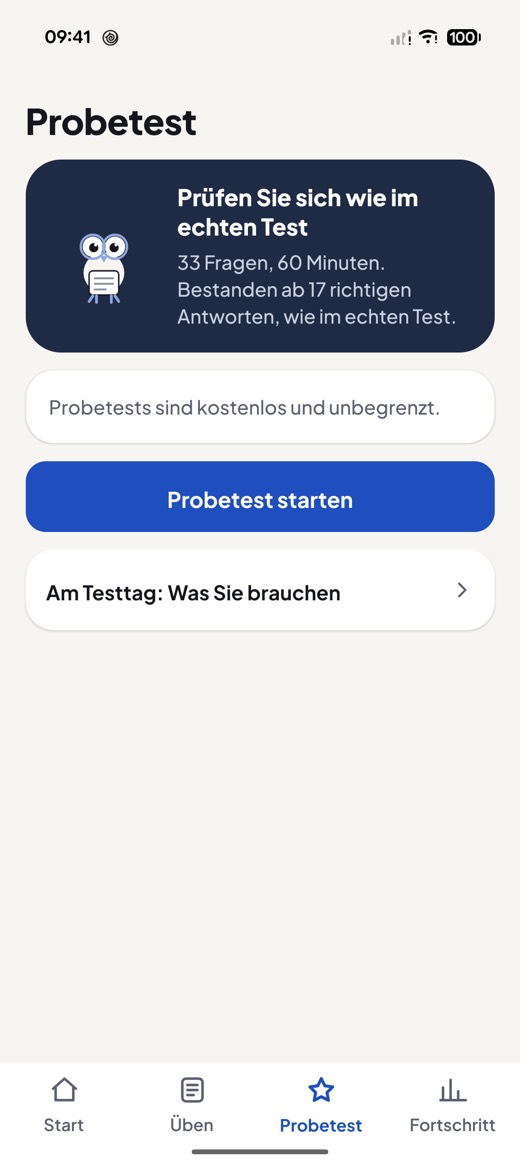
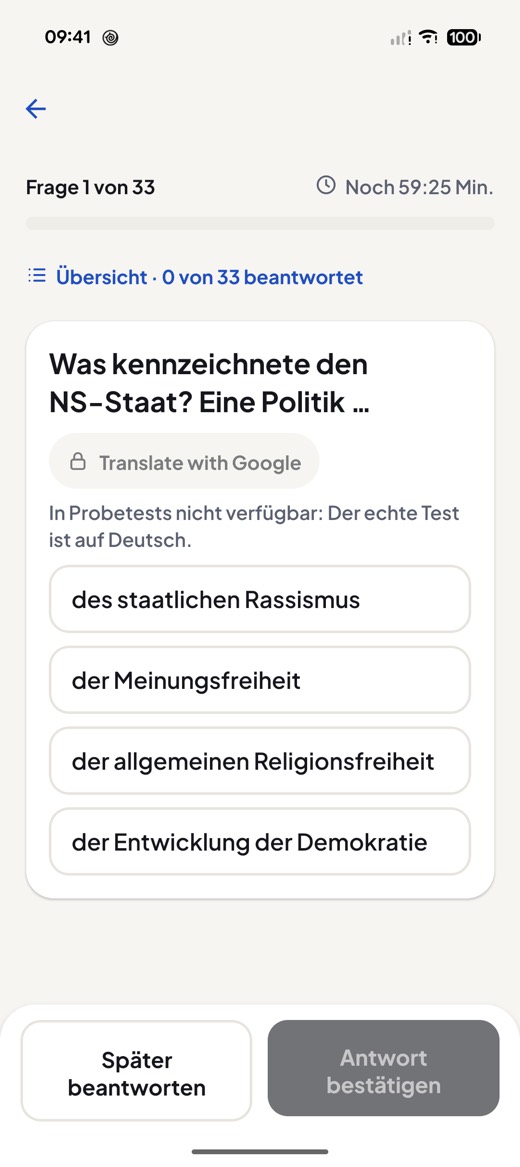
- 33 questions, 60 minutes. At the top you see the time that is left.
- You pass with 17 correct answers.
- You only see the result at the end.
- Tap an answer. Then tap „Antwort bestätigen“ (Confirm answer).
- Not sure? Tap „Später beantworten“ (Answer later). The question comes back at the end.
- Under „Übersicht“ (Overview) you see all questions. Tap a question to answer it or change it.
- At the end comes „Antworten prüfen“ (Check answers). Only with „Probetest abgeben“ (Hand in practice test) is everything finished.
After that, you see your result. With „Diese 3 wiederholen“ (Review these 3) (the number changes) you practise your mistakes.
If you close the app during the test, you can continue later: tap „Probetest fortsetzen“ (Continue practice test). If you tap „Verlassen“ (Leave), your answers do not count. Once the full version can be bought, a free practice test needs internet for a moment when it starts. Offline, the app says so at once, and „In der Zwischenzeit üben (geht offline)“ (Practise meanwhile (works offline)) opens „Üben“ (Practise).
On the same page you also find „Am Testtag: Was Sie brauchen“ (On test day: what you need). It says what to bring to the test.
Progress
Tap „Fortschritt“ (Progress) at the bottom. You see:
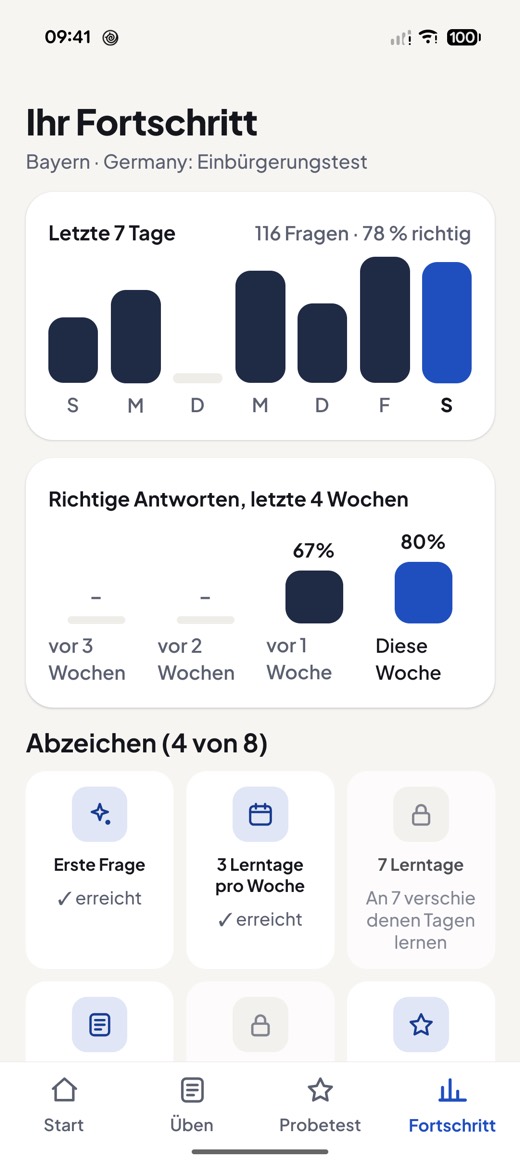
- „Letzte 7 Tage“ (Last 7 days): how many questions you practised on each day.
- „Richtige Antworten, letzte 4 Wochen“ (Correct answers, last 4 weeks): how you get better week by week. The 4 weeks start with the week of your first answer. A week with fewer than 5 answers shows the number of answers, for example „3 Antworten“ (3 answers). At the very start, Progress shows just one card: „Ihr Fortschritt erscheint hier nach Ihren ersten Fragen.“ (Your progress shows here after your first questions.) with the button „5 Fragen beantworten“ (Answer 5 questions).
- Badges: small rewards for your learning. An open badge says how you can get it.
- „Letzte Probetests“ (Recent practice tests): each practice test with ✓ or ✗, your result and the date.
Study plan and reminder
Do you know your test date? Then the app makes a plan for you.
- On the start screen, tap „Testtermin festlegen“ (Set test date). (Or in the settings, tap „Testtermin“ (Test date).)
- Tap „Datum wählen“ (Choose date) and choose the day. Tapping OK saves it.
- The app splits all questions into small daily goals. Every day you see how many are done, for example „Heute 8 von 19 geschafft“ (8 of 19 done today).
- Turn on „Tägliche Erinnerung“ (Daily reminder). Then you get one short message a day. Your phone may ask if it should allow notifications. Under „Uhrzeit“ (Time) you choose when it comes. The reminder also works without a test date. You can also turn it on at the end of the first start: „Jeden Tag um 18 Uhr erinnern“ (Remind me every day at 6 pm).
The date and reminder stay on your devices. Want to change it? Tap „Testtermin“ (Test date) and choose a new day.
Translations
The test is in German. But a translation helps you understand a question. Translations are free.
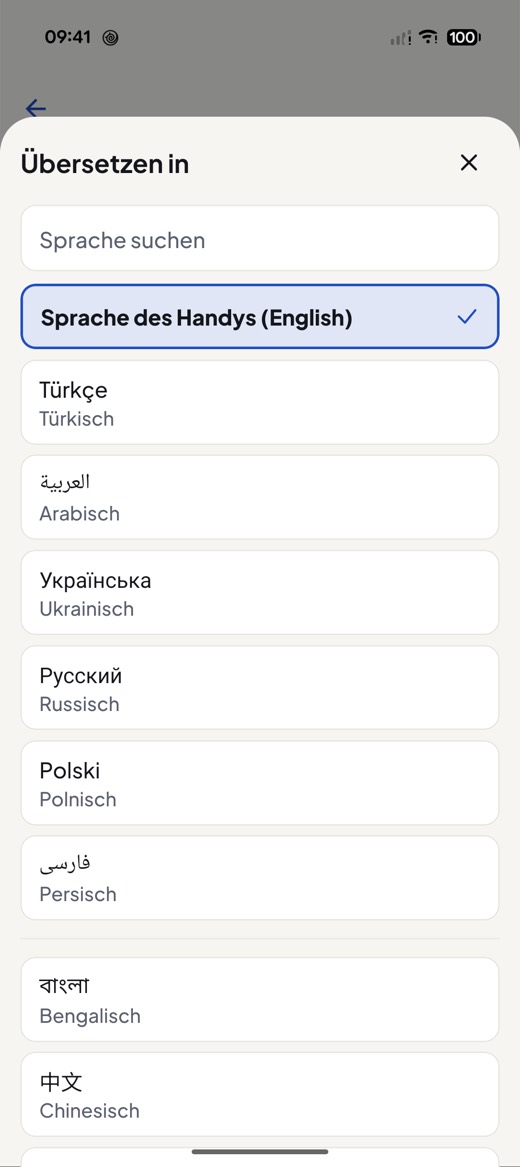
- Open the settings. Tap „Übersetzen in“ (Translate into). Choose your language. You can search the list.
- In practice, a small card on the first question offers your language (one tap). After that, the language switch at the top (for example „DE | EN“) turns translation on or off for the whole screen.
- On Android, translations are powered by Google Translate.
- A computer on your phone translates. The translation can have mistakes. No person has checked it.
- The first time, your phone may download your language. On Android this only works with Wi-Fi, unless you turn on „Übersetzungen auch ohne WLAN laden (mobile Daten)“ (Download translations without Wi-Fi too (mobile data)).
- There is no translation in the practice test, just like in the real test.
Settings
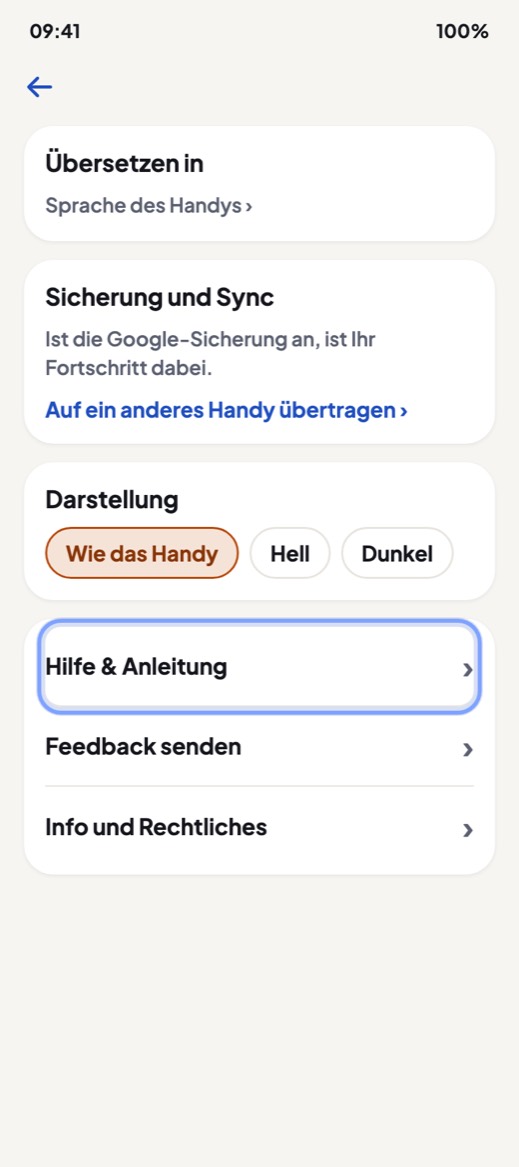
On the start screen, tap the gear icon at the top right. Here you can change:
- Your Bundesland: „Ihr Bundesland“ (Your federal state) or „Bundesland: … (ändern)“ (Federal state: … (change)).
- „Testtermin“ (Test date) and „Tägliche Erinnerung“ (Daily reminder): your test date and your daily reminder, in the study plan.
- „Übersetzen in“ (Translate into): your language for translations.
- „Sicherung und Sync“ (Backup and sync): free. If your phone’s backup is on, your progress goes into your own iCloud or your Google account. We never see it.
- „Auf ein anderes Handy übertragen“ (Move to another phone): Tap „Fortschritt senden“ (Send progress). This turns your progress into a file. On the new phone, tap „Fortschrittsdatei öffnen“ (Open progress file). This also works between iPhone and Android.
- „Darstellung“ (Appearance):„Wie das Handy“ (Like the phone), „Hell“ (Light) or „Dunkel“ (Dark).
- „Vibration“ (Vibration): on or off.
- „Hilfe & Anleitung“ (Help & guide): opens this guide in the app, in your language if it is available. You need internet for this. If your phone is set to Turkish, Arabic, Ukrainian, Russian, Polish, Persian or English, „Anleitung in Ihrer Sprache“ (Guide in your language) opens this guide in that language straight away.
- „Feedback senden“ (Send feedback): pick a reason, write a note if you like, and your email app opens with the message ready. Nothing is sent until you press Send there.
- „Meine Daten auf diesem Handy löschen“ (Erase my data on this phone): removes your progress and settings from this phone, and you start again. Your purchases stay. A backup in your iCloud or Google account is not erased.
Full version: what is free?
Free, with no ads and no account:
- all questions with answer and source
- practising and reviewing without limits
- translations
- the backup of your progress
- practice tests: unlimited today
The full version is coming soon. It is a one-time purchase: no subscription, nothing renews. It offers unlimited practice tests. As soon as you can buy it, 2 practice tests per week are free. You get new ones every Monday. Everything else in the app stays free. Under the buy button, „Was kostenlos bleibt ›“ (What stays free ›) opens the list of what stays free.
Later, when you have bought the full version, you find it at the top of the settings. How to get a purchase back on a new phone is explained on the help page.
Using two phones? If you bought the full version, it belongs to your Google Play or Apple account: tap „Käufe wiederherstellen“ (Restore purchases). Your progress does not move by itself from one Android phone to another, or between Android and iPhone. To move it, on the old phone go to Settings → „Auf ein anderes Handy übertragen“ (Transfer to another phone) → „Fortschritt senden“ (Send progress). On the new phone, tap „Fortschrittsdatei öffnen“ (Open progress file): in Settings, or in the tip „Kommen Sie von einem anderen Handy?“ (Moving from another phone?) on the home screen.
Tips for older learners
- Bigger text: use your phone's text size. Android: Settings, Display, „Schriftgröße“ (Font size). iPhone: Settings, „Anzeige & Helligkeit“ (Display & Brightness), „Textgröße“ (Text Size).
- Slower reading aloud: In „Anhören“ (Listen), choose the speed „0.75ד.
- Listen instead of reading: Tap „Vorlesen“ (Read aloud) on a question. Or use „Anhören“ like a radio.
- Difficult words: Tap words with ⓘ.
- Short and often: A few minutes every day are enough. The daily reminder helps.
- No rush: In the practice test, you can skip questions with „Später beantworten“ (Answer later). You have 60 minutes.
- Get help: Someone from your family or a friend can set up the app with you the first time.
Do you need help?
You find answers to common questions on the help page: backup, restoring, translations and more.
Still stuck? Write to us at support@citizenwise.app. You can also do this in the app: Settings, „Hilfe & Anleitung“ (Help & guide) or „Feedback senden“ (Send feedback).
Citizenwise is an independent learning app. It is not connected to the BAMF or any other authority, and it is not supported or commissioned by them. This is not legal advice. We cannot promise a result in the test.