Start in 3 steps
- Open the app. Enter your ZIP code, or choose your state.
- Answer the first few questions. Then tell the app when your interview is.
- Practice a few minutes every day. Tap the big button on Home. It always shows your next step.
First start
You do not need an account. The app asks you a few things, one step at a time.
- A short note. Citizenwise is a study app. It is not USCIS. Tap "Start".
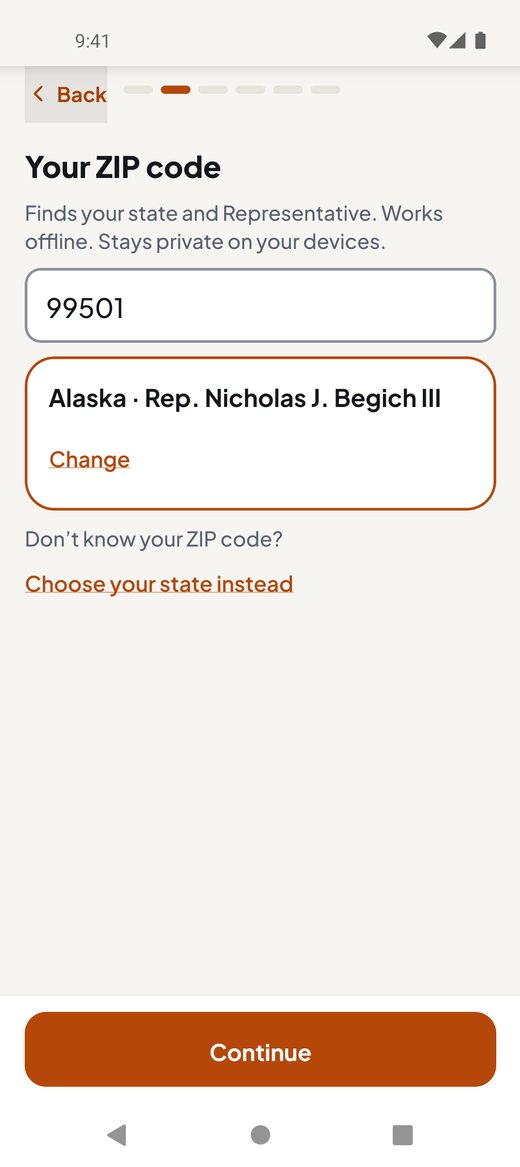
- Your ZIP code. Some answers depend on where you live, for example your senators and your Representative. Type your ZIP code. The app finds your state and your Representative. It works offline. Your ZIP code stays on your phone.
- No ZIP code at hand? Tap "Don’t know your ZIP code?", then "Choose your state instead".
- Not now? Tap "Skip for now". You can choose it later in Settings.
- When did you send your N-400? Tap "Before Oct 20, 2025", "On or after Oct 20, 2025" or "I haven’t applied yet". One line tells you which test you take, for example "You take the 2025 test: 128 questions, pass with 12 of 20." Then tap "Continue". Not sure? Tap "Skip for now": you start with the 2025 test, and Home shows "Your test: 2025 (128 questions) · Change" until you choose.
- The microphone. In the practice interview you answer out loud. Tap "Allow microphone". If you prefer to type, tap "I’ll type instead".
- A few first questions. This shows you where to start. A low score is fine. Not now? Tap "Skip".
- "When is your interview?" Choose "In 1–2 months", "Pick a date" or "Not sure yet". With a date, tap "Start my plan". Without one, tap "Start practicing". With a date or "In 1–2 months", you can tick "Remind me each day at 6 PM". Only then does your phone ask to allow notifications. If your phone is set to Spanish, Chinese, Vietnamese, Tagalog, Hindi or Arabic, a link opens this guide in that language.
Which test do you take?
There are two civics tests. The date you sent your citizenship application (Form N-400) decides which one you take:
- Sent before Oct 20, 2025: the 2008 test (100 questions).
- Sent on or after Oct 20, 2025, or not sent yet: the 2025 test (128 questions).
The app asks at the first start ("When did you send your N-400?"). If you skipped it, Home shows "Your test: 2025 (128 questions) · Change" until you choose. To change it later, go to Settings and tap "Your test: … · Change". There you can also enter the "Received date" from the letter USCIS sent you and tap "Save date".
Home
Home shows how you are doing and what to do next.
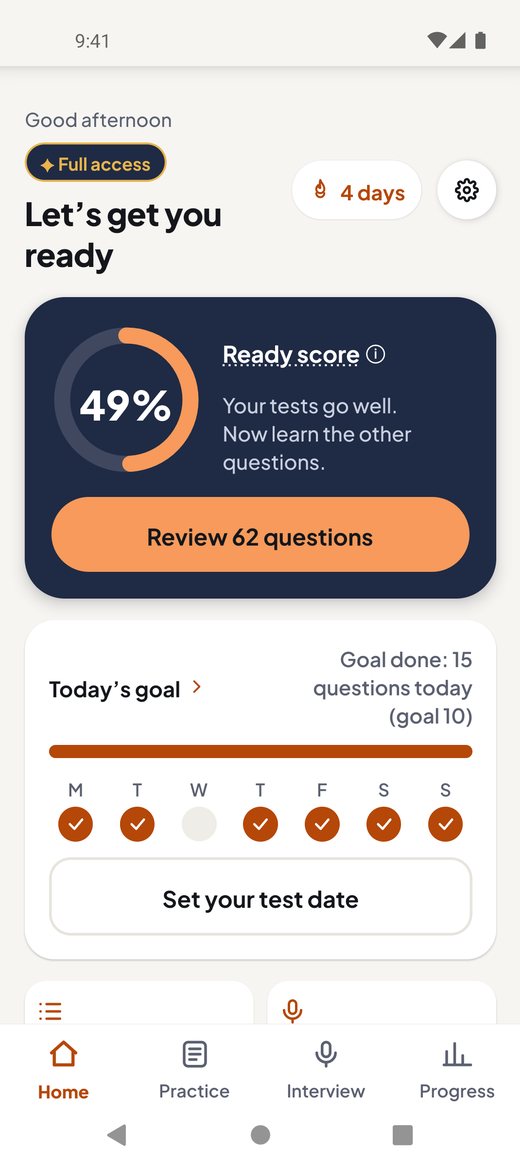
- Top: a greeting and the days until your interview, for example "Interview in 30 days". The gear icon at the top right opens Settings.
- "Ready score": the ring shows a percent. Half of it comes from the questions you know. Half comes from your last 5 practice tests. It is only a guide. It can’t tell you if you will pass. Tap "Ready score" to read more.
- The big button: your next step. It changes. For example: "Start · 19 questions" (today’s plan), "Review 12 questions", "Start a practice interview" or "Continue: (a topic)". For a new topic it says "Start: (a topic)".
- "Today’s goal": how many questions you did today, and a dot for each day of the week you studied. Without an interview date the goal is 10 questions a day; with a date it is your plan’s number for today.
- Below: quick links, for example "Practice all questions" and "Interview practice". About two weeks before your interview, the "Interview-day kit" appears. It says what to bring.
Practice
Tap the "Practice" tab at the bottom. At the top you find:
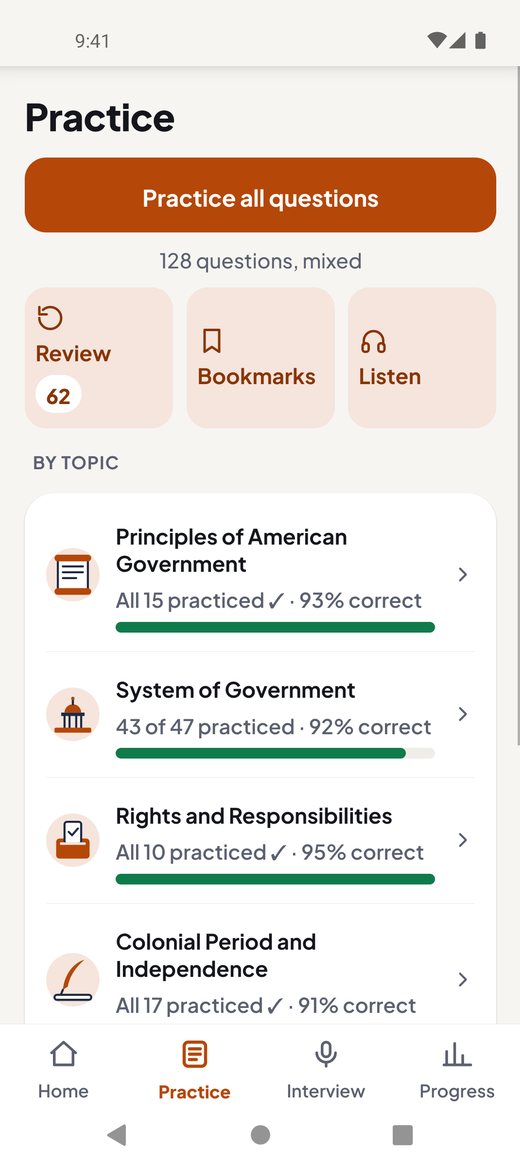
- "Practice all questions": go through every question. It counts in rounds of 10, for example "Round 1 · 1 of 10".
- "Review": the questions you should practice again today. The number shows how many. "All caught up ✓" means nothing is due.
- "Bookmarks": questions you saved.
- "Listen (hands-free)": the phone reads questions and answers aloud.
Topics
Below is the list of topics. Each topic shows how far you are, for example "5 of 12 practiced". After 5 answers in a topic, you also see how many you got right, for example "· 80% correct". If a topic is hard for you, it says "Needs work". Tap a topic to practice it. When you finish a topic with every answer right, "Next topic" takes you on.
How a question works
- Read the question. Tap "Listen" to hear it.
- Think of your answer. Then tap "Show answer".
- Be honest: tap "I knew it" or "Not yet". You can also swipe: right if you knew it, left if not yet.
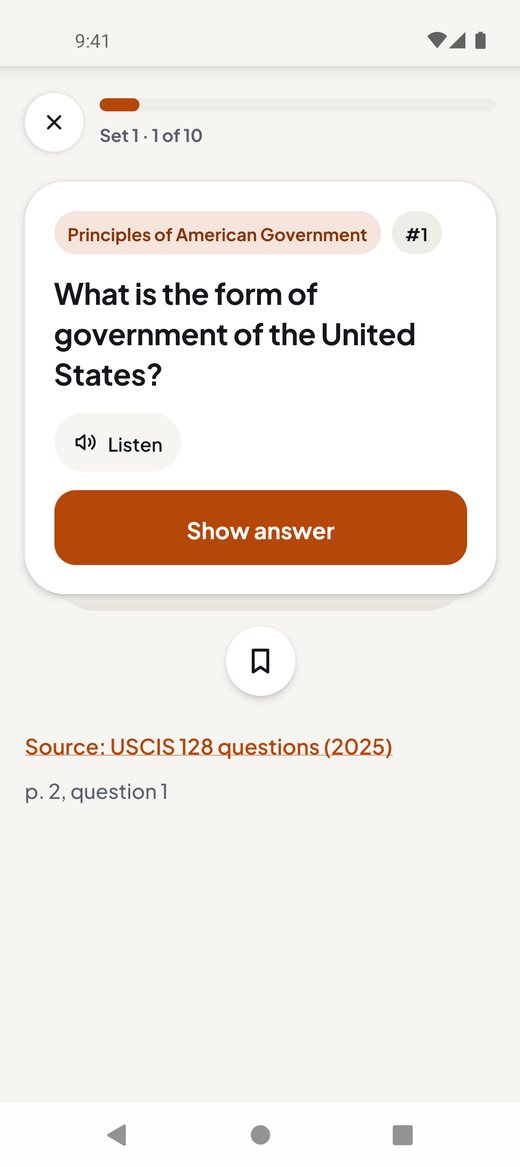
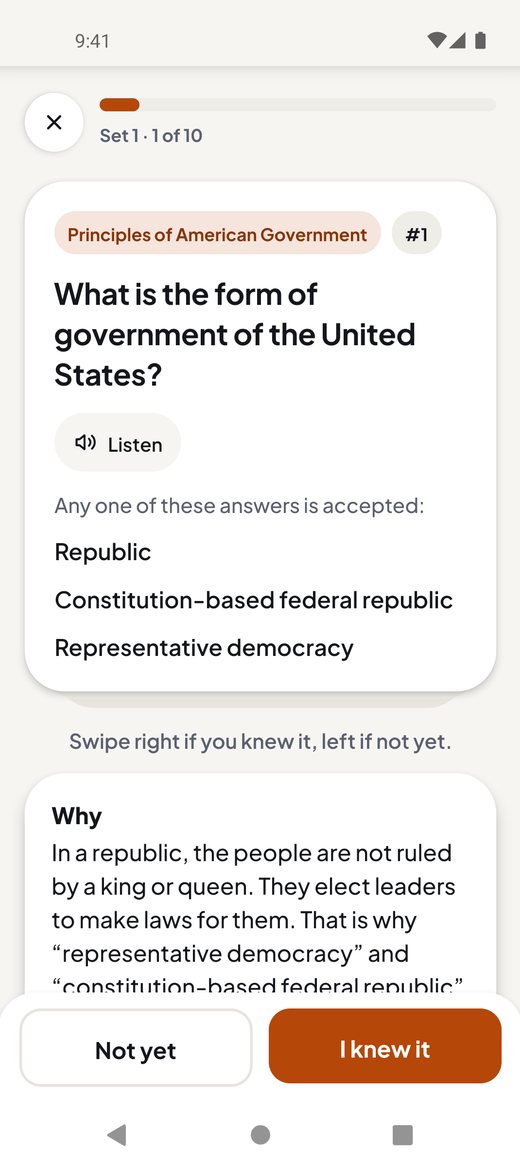
Questions you did not know come back in "Review". In Review you can tap "I know this well" to take a question out.
- Bookmark: tap 🔖 on a question to save it. Find it later in "Bookmarks".
- "Why": after you answer, a short box explains the answer in plain words, with its official source. It is there for the 2025 test.
- Words with ⓘ: tap them to see what they mean.
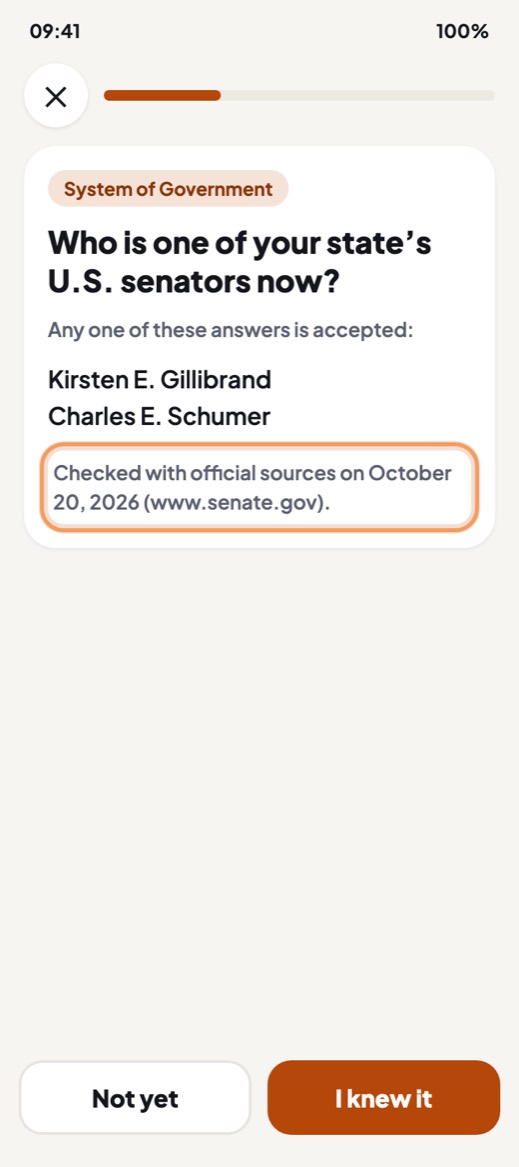
- Answers that change: some answers change after elections, for example your senators or the governor. Under these answers the app shows "Checked with official sources on" and a date. After an election, a short note tells you which name to give at your interview. We update these names without a new app version.
Listen hands-free
Open "Listen (hands-free)" on the Practice tab. The phone reads a question, waits so you can think, then reads the answer. It works offline. It is good for a walk or a bus ride. Choose a topic, "To review" or "All questions". You can also choose the speed. Free: the first topic. Every topic comes with Full access.
Practice tests
A practice test works like the civics part of the real interview. Start it from the "Interview" tab: tap "Practice test".
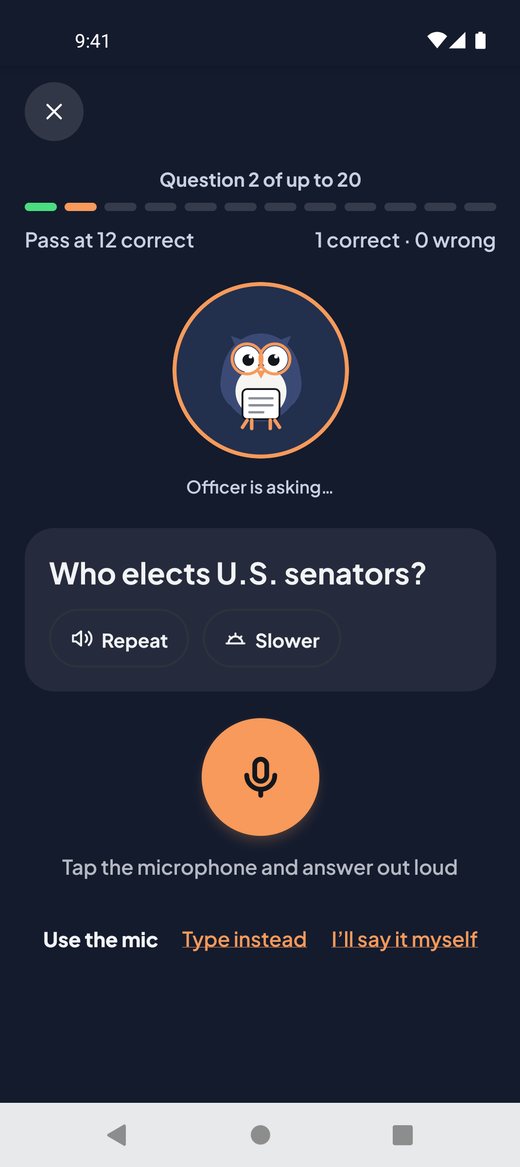
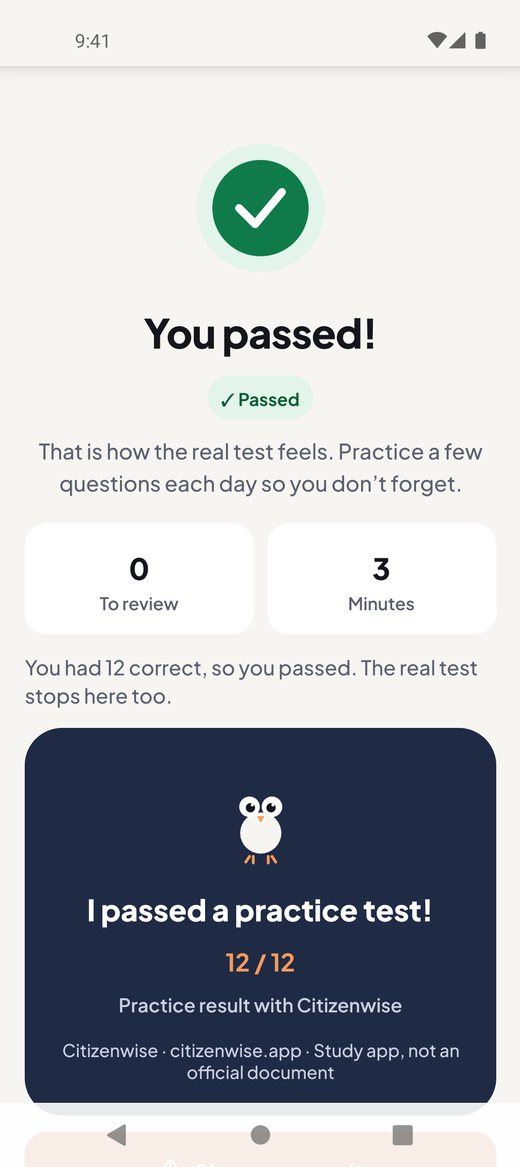
- 2025 test: up to 20 questions. You pass with 12 correct.
- 2008 test: up to 10 questions. You pass with 6 correct.
- The test stops early, like the real one: when you have passed, or when you can no longer pass. The result says why, for example "You had 9 wrong, so you could no longer reach 12 correct."
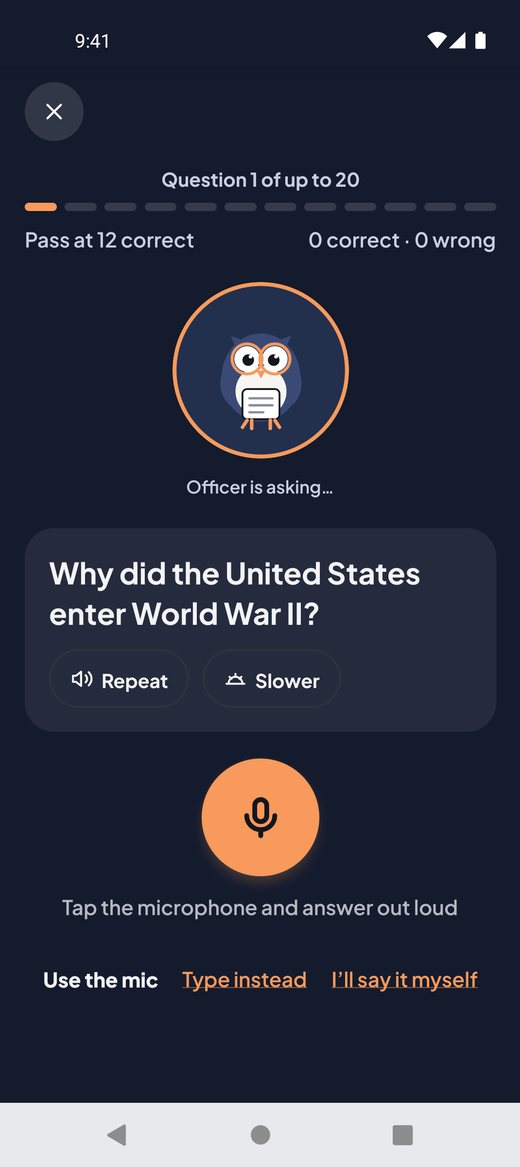
The phone reads each question aloud. You can answer in three ways: "Use the mic", "Type instead" or "I’ll say it myself" (you then check your answer with the official answers). Tap "Repeat" to hear the question again, or "Slower" to hear it slowly.
At the end you see your result. To practice your mistakes, tap "Review these 3" (the number changes) or "Review this one". Practice tests are free, with no limit.
If you close the app during a test, you can go on later: tap "Continue your test". If you tap "Leave", your answers so far do not count.
Practice interview
Tap the "Interview" tab (the microphone icon). Here you practice the whole interview, out loud:
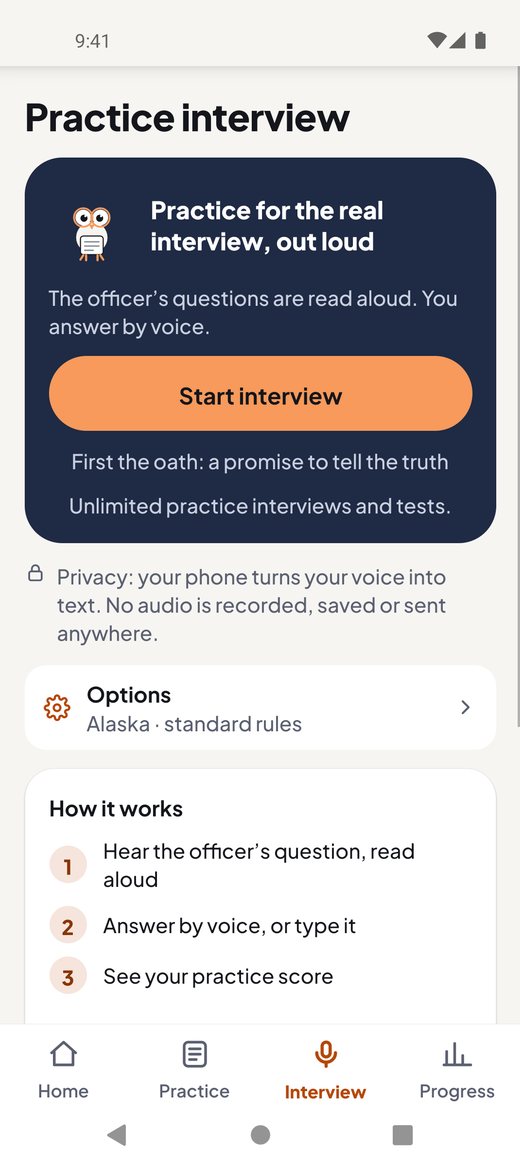
- First the oath: a promise to tell the truth. Then some small talk. This part does not count.
- The civics questions, with the same rules as the practice test.
- The reading test: read 1 of 3 sentences correctly to pass.
- The writing test: listen and type 1 of 3 sentences correctly to pass.
Tap "Start interview" to begin. Tap the microphone and answer out loud. If the app heard you wrong, you can try again. You can also type, or say the answer and check it yourself.
Your privacy: your phone turns your voice into text. No audio is recorded, saved or sent anywhere.
65 or older? If you were 65 or older and a permanent resident for 20 years or more when you filed, turn on "I was 65+ and a permanent resident for 20+ years when I filed". Then you study only 20 questions. The app cannot decide this for you.
This is only a practice score. At the real interview, the USCIS officer decides.
Free: 1 practice interview a week. It counts only once you answer the first civics question. You get a new one every Monday. Practice and practice tests stay free. The free interview needs internet for a moment to start. Offline, the app says so before the officer starts, and "Meanwhile: practice (works offline)" opens Practice.
N-400 English practice
On the "Interview" tab, tap "N-400 questions: practice the English". Here you practice the English of the questions on Form N-400 (your citizenship application), the way an officer may ask them at the interview.
English practice only, not legal advice. Only you can decide your answers. For questions about your own case, talk to an immigration attorney or a DOJ-accredited representative. The first time, the app shows this note; tap "I understand" to go on. The note also stays at the top of every N-400 screen.
- "Learn the words": every hard word on the form, in plain English.
- "Hear the question": the officer's voice reads a question. Tap "Show the words" to read it. Then tap "I understood" and pick which question it was.
- "Ask the officer": practice asking the officer to repeat a question, to say it another way or to speak more slowly.
- "Rehearse the review": the N-400 part of the interview, in order, about 8 minutes. There is no score.
The app never asks for your answers and never checks them. For the yes/no questions ("Have you ever…") the microphone stays off. The app keeps only which questions you practiced and the day.
Free: every word and section 1 ("You and your family"). Full access adds every section and the rehearsal.
Progress
Tap the "Progress" tab. You see:
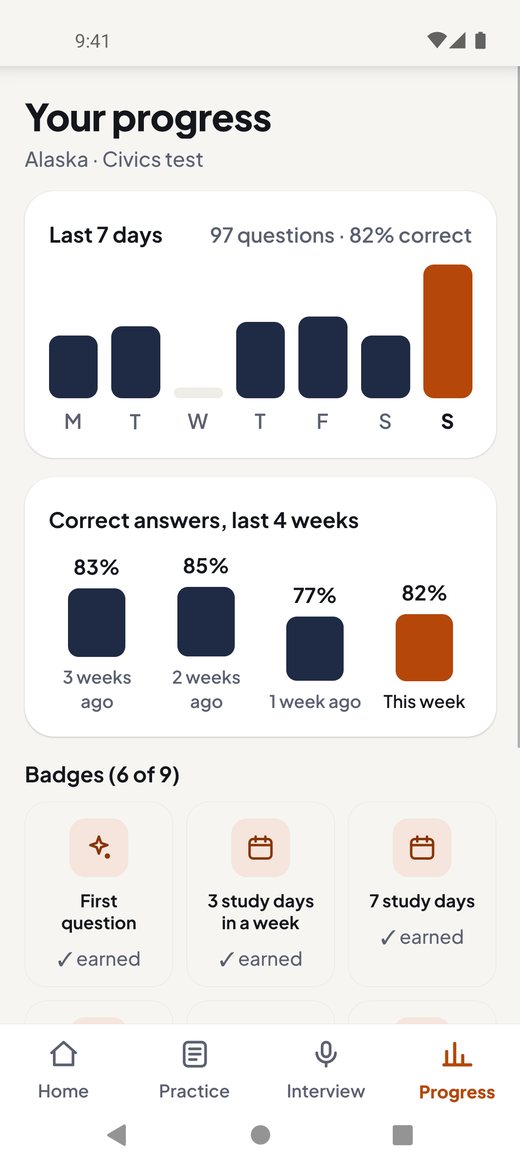
- "Last 7 days": how many questions you did each day.
- "Correct answers, last 4 weeks": how your answers get better week by week.
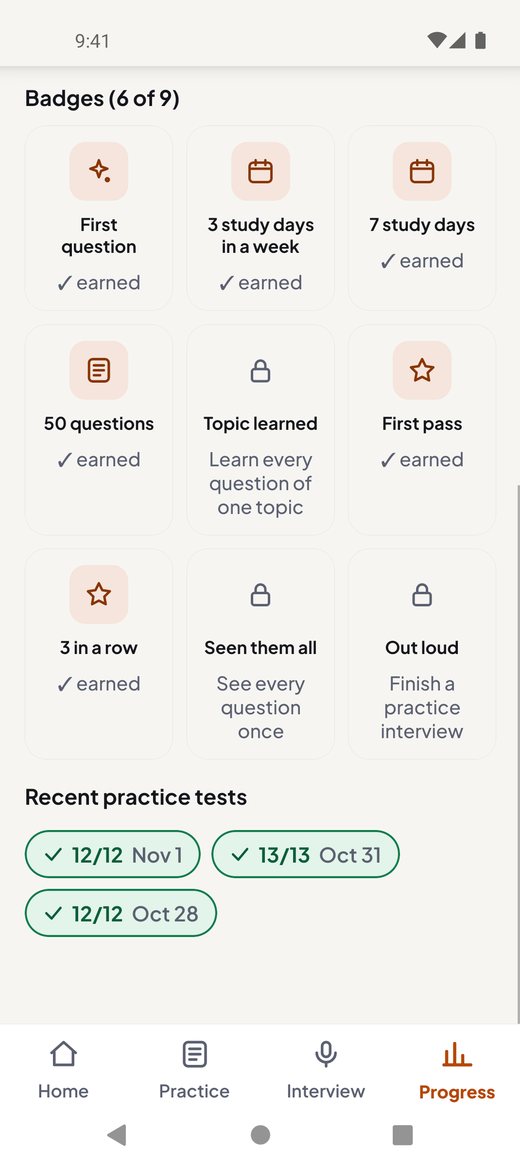
- Badges: small rewards for your work. A locked badge tells you how to earn it.
- "Recent practice tests": each test with ✓ or ✗, your score and the date.
In your first days the tab starts with one card: "Your progress shows here after your first questions." Tap "Answer 5 questions" to begin. The 4 weeks start with the week of your first answer. A week with fewer than 5 answers shows how many answers it has, for example "3 answers", instead of a percent.
Study plan and reminders
Do you know the date of your interview? Then let the app plan for you.
- On Home, tap "Set your test date". (Or go to Settings and tap "Interview date".)
- Tap "Pick a date" and choose the day. It is saved when you tap OK.
- The app splits all questions into small daily goals. Each day you see how many are done, for example "8 of 19 done today".
- Turn on "Daily reminder" to get one short note a day. Your phone may ask you to allow notifications. Tap "Time" to choose when it comes. The reminder works without a date too. You can also tick "Remind me each day at 6 PM" at the end of the first start.
Your date and reminder stay on your phone. To change the date, tap "Interview date" and pick a new day.
Translations
The real test is in English. But a translation can help you understand a question.
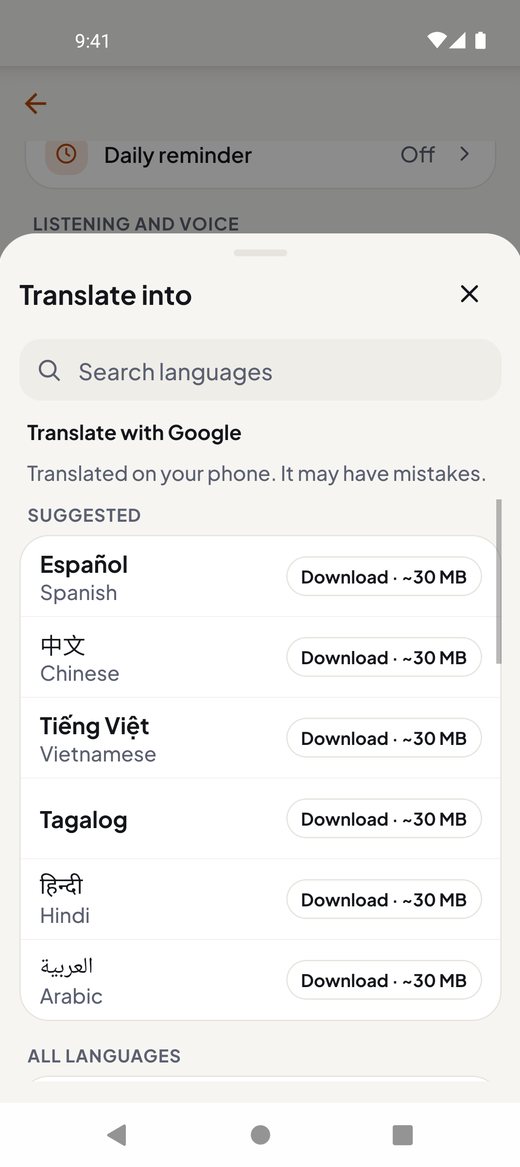
- Go to Settings. Tap "Translate into". Choose your language from the list. You can search for it.
- In practice, a small card on the first question offers your language (one tap). After that, the language switch at the top (for example "EN | ES") turns translation on or off for the whole screen.
- On Android, translations are powered by Google Translate.
- A computer on your phone translates. It may make mistakes. No person has checked it.
- The first time, your phone may need to download the language. On Android this uses Wi-Fi, unless you turn on "Download translations with mobile data (not only Wi-Fi)".
- Translations do not show in practice tests.
- Translations are free in the first topic. Every topic comes with Full access (see Full access). Without it, later topics show a lock on the language switch, and the first topic says "Free in this topic. Every topic with Full access."
Some people may take the civics test in their own language, because of their age and years as a permanent resident. If that is you, turn on "I may take the civics test in my own language". Tap "Who can use this?" to read the rules. Then translations also work in practice tests. The app cannot decide this for you, and it is not legal advice.
Settings
Tap the gear icon at the top right of Home. In Settings you can change:
- "Full access": on Android, a card at the top shows what Full access includes.
- Your state: "Your state" or "State: … (change)".
- Your test: "Your test: 2025 (128 questions) · Change".
- "Interview date" and "Daily reminder": your date and your daily reminder, in your study plan.
- "Reading voice": choose a "Voice" and tap "Play sample" to hear it. Choose the "Speed". "0.9× (normal)" is the normal speed; "0.75×" is slower. This is your phone’s computer voice, not a real officer. The list shows the 3 best voices first; "More voices" shows the rest.
- "Translate into": your language for translations.
- "Backup & sync": free. If your phone’s backup is on, your progress goes to your own iCloud or Google account. We never see it.
- "Transfer to another phone": tap "Send my progress" to save your progress as a file. On the new phone, tap "Open a progress file". This works between iPhone and Android.
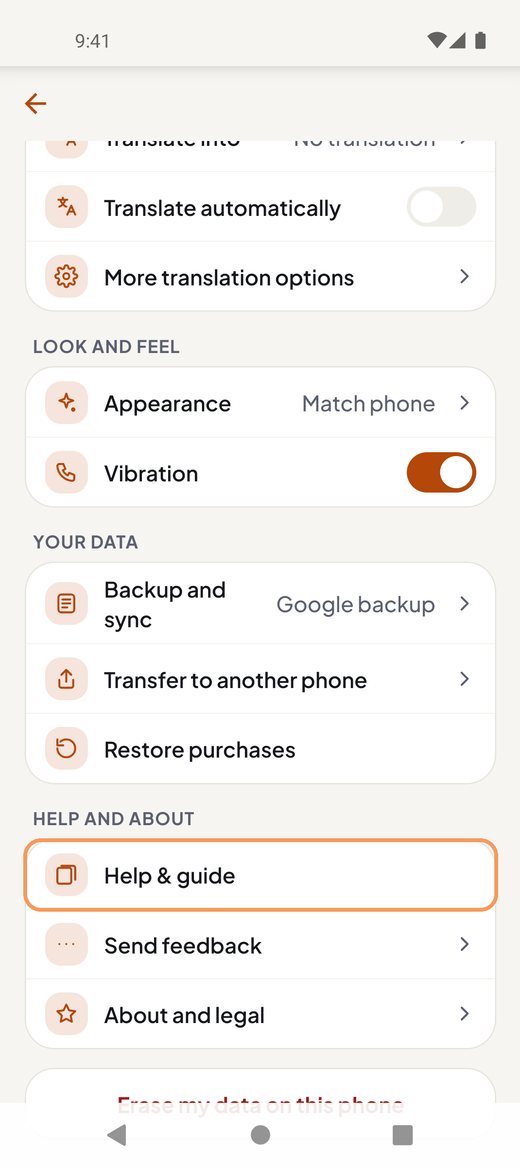
- "Appearance":"Match phone", "Light" or "Dark".
- "Vibration": on or off.
- "Help & guide": opens this guide inside the app, in your language when we have it. You need internet for it. If your phone is set to Spanish, Chinese, Vietnamese, Tagalog, Hindi or Arabic, "Guide in your language" opens this guide in that language.
- "Send feedback": pick a reason, write a note if you like, and your email app opens with the message ready. Nothing is sent until you press Send there.
- "Erase my data on this phone": removes your progress and settings from this phone, and you start again. Your purchases stay. A backup in your iCloud or Google account is not erased.
Full access: what is free
Most of the app is free, with no ads and no account.
Always free
- Every civics question, what counts as correct, and its official source
- Unlimited practice tests
- "Review" and "Bookmarks"
- 1 spoken practice interview a week
- "Why", Listen and translations for the first topic
- The backup of your progress
- N-400 English practice: every word and section 1
Full access
Full access is a one-time purchase. There is no subscription. Nothing renews. It adds:
- Unlimited practice interviews (you speak)
- "Why" and Listen for every topic
- Translations for every topic
- N-400 English practice: every section and the rehearsal
On Android it costs USD 9.99 on Google Play. The app shows the price before you buy. To buy, go to Settings. At the top, on the "Full access" card, tap "See what’s included". Under the "Buy" button, "What stays free ›" opens the list of free features.
On iPhone, Full access costs USD 9.99, a one-time purchase. The app shows the price before you buy, and you buy it the same way as described above. Everything else in the app stays free.
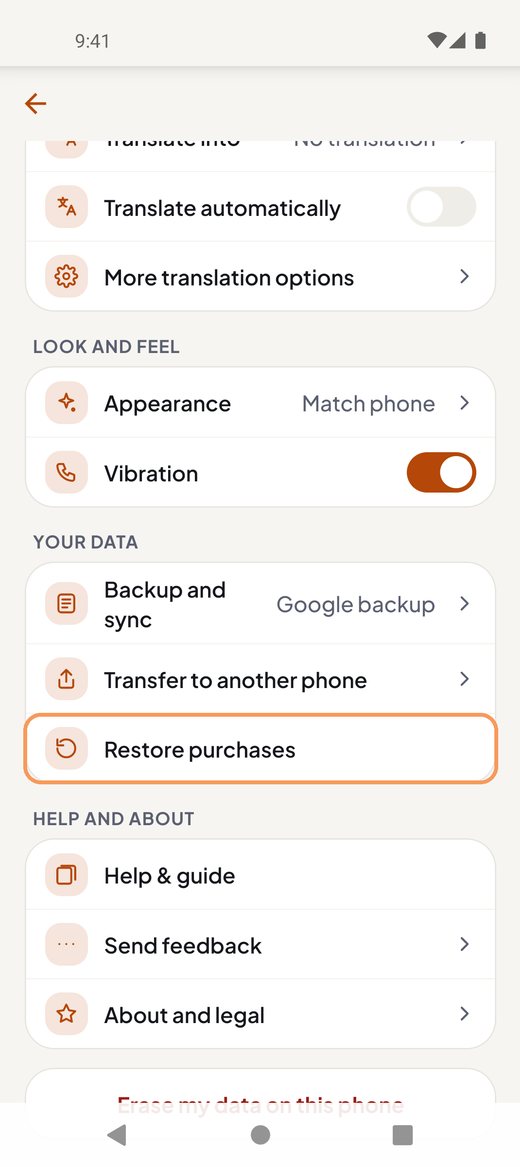
New phone? Full access usually comes back by itself when you are online. If not: sign in with the same Google account you used to buy. In Settings, tap "See what’s included". Under "Already paid on another phone?", tap "Restore purchases". You do not pay again.
Using two phones? Your Full access moves with your Google Play or Apple account: tap "Restore purchases". Your progress does not move by itself between two Android phones, or between Android and iPhone. To move it, on the old phone go to Settings → "Transfer to another phone" → "Send my progress". On the new phone, tap "Open a progress file": in Settings, or in the tip "Moving from another phone?" on Home.
Tips for older learners
- Bigger text: use your phone's text size. Android: Settings, Display, "Font size". iPhone: Settings, Display & Brightness, "Text Size".
- A slower voice: Settings, "Reading voice", "Speed": choose "0.75×". In a question, tap "Slower" to hear it slowly again.
- Typing instead of speaking: in the interview or a practice test, tap "Type instead". Or say the answer to yourself and tap "I’ll say it myself".
- Hard words: tap words with ⓘ.
- Short and often: 5 minutes a day is better than one long day. The daily reminder helps.
- Listen: use "Listen (hands-free)" and just listen, like the radio.
- Ask for help: a family member or friend can set up the app with you the first time.
Need help?
Read the answers to common questions on the Help page: backup, restore, translations, refunds and more.
Still stuck? Write to us at support@citizenwise.app. In the app, you can also go to Settings and tap "Help & guide" or "Send feedback".
Citizenwise is an independent study app. It is not affiliated with, endorsed by or connected to USCIS or any government. It is not legal advice. We cannot promise any test result.